
Edit and Create Action Definitions
Important: Store your custom action definition documents in a location that is backed up.
Action Definitions are Word documents used to configure actions in LandTracker. You can modify the standard action definitions that have been created by LandTrack Systems (see Download Templates and Action Definitions) or you can create your own.
The most common modification is updating an action's tasks to match your company’s business process. Other areas you can define include:
- Which assets an action applies to.
- When an action should occur.
- Mandatory conditions required for an action to be created.
Important: Do not rename the standard action definitions as this may disable some of LandTracker's functionality.
Note: LandTracker templates use specific naming conventions. See Action Definitions for information about file name structure and templates.
Considerations before editing an action definition document:
Each section of the document described in Action Definitions is represented by a series of tables with labels and fields. All of these elements are customisable; however, LandTracker requires that the logic, basic format and structure of the document remain intact so that it can be imported.
- In the document, sections filled with green can be edited and are read by LandTracker.
- Some tables have hidden borders. In Word's View tab, select the Gridlines checkbox to show the borders as dotted lines.
- Tables must be separated by a new line for LandTracker to recognise them as separate tables.
- Do not leave blank rows within the table or more than one blank row and the end of a table.
Activity Steps
Note: It is recommended you start with a copy of a similar existing action definition. A range of templates are available. See Download Templates and Action Definitions. For example:
-
For Western Australia (WA), the Rent (WA) action definition is a recurring, automatically scheduled action that occurs annually.
-
The Extension of Term / Renewal (WA) action definition is a recurring, automatically scheduled action that occurs on a different schedule for each tenement type.
-
The Interim Rates Notice action definition is a predefined ad hoc action with multiple tasks.
-
The Tenement Ad Hoc action definition is a set of predefined ad hoc actions, each with a single task. See next task for how to create an ad hoc action definition.
- Open the document of an existing similar action.
- Save a copy of the document using the standard file name convention described in Action Definitions.
- In the Action Trigger table, in the Asset Type field, enter Tenement, Agreement, Environment, or Contact as applicable.
-
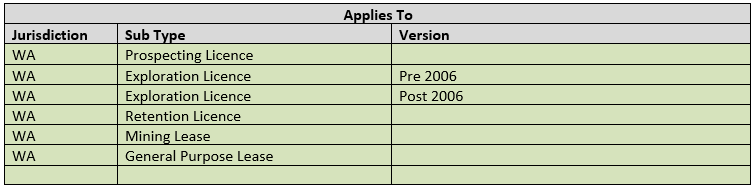
In the Applies To table, enter the Sub Type of the asset that the action should be created for. Enter the Jurisdiction and/or Version details as required.
Important: These details must be exactly as defined in the Asset Templates.
-
To specify preconditions, in the Action Trigger table, enter the Precondition criteria. For example, most tenement actions are only applicable for live tenements, this is reflected as:
Important: Preconditions support simple comparisons and expressions that use multiple fields, arithmetic, comparison operators, logical operators and functions. See Expression operators and functions for the complete syntax.
For example:
{Fieldname} = 'Value'checks a single field.{quantity} * {unitPrice} > 1000 AND {status} != 'Cancelled'combines a calculation and a second field comparison.{status} = 'Live' OR {status} = 'Pending'accepts either status.In({status}, 'Live', 'Pending')checks whether a field matches one of several values.
To include multiple independent preconditions, enter each expression on a separate line in the same cell. The asset must satisfy every line.
Note: If the action applies to all assets of the type and sub type specified, delete the Precondition row from the Action Trigger table.
Note: You can apply different preconditions for each sub type by removing the row from the Action Trigger table and adding a column titled Preconditions to the Applies To table.

-
To specify group membership, in the Action Trigger table in the Is Member Of field, enter theGroup Name.
Note: When listing multiple groups, enter a carriage return between them, ensuring they remain in the same cell of the table. Actions are created if the asset is a member of any one of the groups.
Note: If you want the action to be created for all assets, delete the Is Member Of row from the Action Trigger table.
-
To exclude assets from specified groups, in the Action Trigger table in the Is Not Member Of field, enter the Group Name.
Note: When listing multiple groups, enter a carriage return between them, ensuring they remain in the same cell of the table. Actions are created only when the asset is not a member of any listed group.
Note: Is Member Of and Is Not Member Of can be used together. The asset must satisfy both conditions.
- Enter the action's Interval frequency. Select from:
On Demand: used for one-off (ad hoc) Actions
Monthly or Month
Annually or Annual
X days/years/months
Every X days/years/months: For an action that occurs once, such as based on Received Date, use 0 days.
Note: The interval works in conjunction with the Critical Date field in the Action Trigger table.
Note: The Interval field may also be referred to as the Due After, Due On, or Term field. The default templates are being updated to standardise the terminology to use Interval.
-
To create a dependent action when the current action is completed, enter the target action definition name in On Complete Action Name.
Enter a period in On Complete Action Offset if the triggered action deadline should be offset from the completed action's deadline. For example, enter
14dto set the deadline 14 days after the parent action deadline.Important: The triggered action must use the On Demand interval. LandTracker prevents duplicate triggered actions when the parent action is completed more than once.
-
To apply the same interval across all asset types and sub types, leave the Interval field in the Action Trigger table.

-
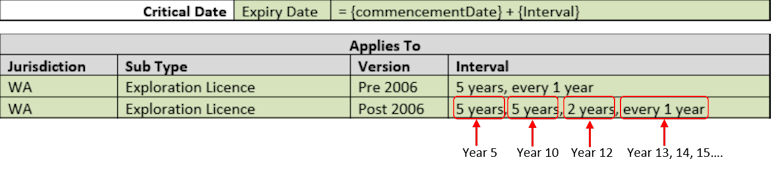
To assign a different interval to each sub type, move the Interval field to a column in the Applies To table.

Note: One action may have multiple intervals, separated by commas. These are additive, for example, for an action to occur at years 2 and 4, enter 2 years, 2 years, not 2 years, 4 years.
-
In the Action Trigger table, update the Critical Date field as required.
Note: To use a tenement's Expiry Date instead of Commencement Date as the Critical Date, you must add a Unique Name Format field to the Action Trigger table. The format of this field is
Action Name-{expiryDate:yyyy}. The purpose of the field is to make the action's name unique by appending the year of expiry at the end, the system sees each subsequent expiry as a separate action.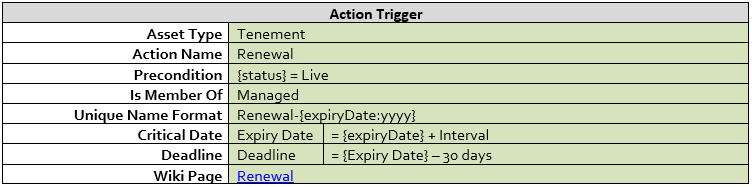
-
In the Action Trigger table, update the AutoComplete field with one of the following values:
-
Off: The action does not auto-complete.
-
OnLodgeForm5: The action auto-completes once the expenditure record has a Lodge Date, even if the expenditure total is less than the commitment.
-
OnLodgeExemption: The action auto-completes if the commitment has been met or the expenditure record has an Exemption Lodged date.
-
OnExemptionGranted: The action only auto-completed if the commitment has been met or the expenditure record's Exemption Status is Granted. This is the default setting and is applied when the AutoComplete field in the action definition is blank or is missing.
Important: The AutoComplete field in the action definition is overridden if auto-complete is disabled in the Application Settings.
-
- In the Task List table, update Description and Days Needed Before Deadline as required.
- In the Change History table, update the Date, Version, and Changes fields.
- Save your document.
Activity Steps
- Open the Ad Hoc - Tenements action definition template.
- In the Action Trigger table, update the Asset Type as required.
- In the Action Trigger table, update the Action Name as required.
- In the Task List table, update the Description as required.
- In the Task List table, update the Days Needed Before Deadline as required.
- In the Change History table, update the Date, Version, and Changes fields as required.
- Save the document using the naming convention described in Action Definitions.
- To upload your action definition to LandTracker, see Import Action Definitions.
Activity Steps
You can create a Specific Type for the Tenement Ad Hoc action in the Edit Actions screen. See Manage Ad Hoc Actions.
Note: The Interval field must stay as On Demand.
- Open your copy of the Tenement Ad Hoc template.
- In the Action List table, enter the Action and its Duration.
- In the Change History table, update the Date, Version, and Changes fields as required.
-
Save the document using the naming convention described in Action Definitions.
-
To upload your action definition to LandTracker, see Import Action Definitions.
